Magento 2
Magento 2 is one of the most advanced e-commerce platforms, used by medium and large enterprises. The Tpay plugin for Magento 2 allows for full integration of online payments, also supporting refunds. The plugin is regularly updated according to the platform's requirements and developed with new functionalities.

Tpay plugin configuration instructions for Magento 2
Requirements:
Magento 2 platform version 2.x.
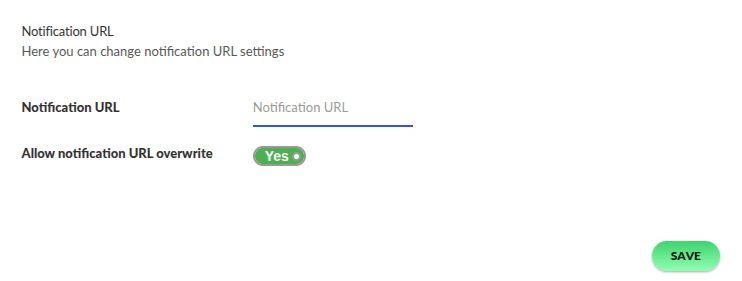
For the correct receipt of transaction status notifications, it is necessary to allow overriding the notification URL. In the Merchant Panel, go to the menu Settings → Notifications → in the Notification URL section, enable the option: Allow URL override notification.
Main settings
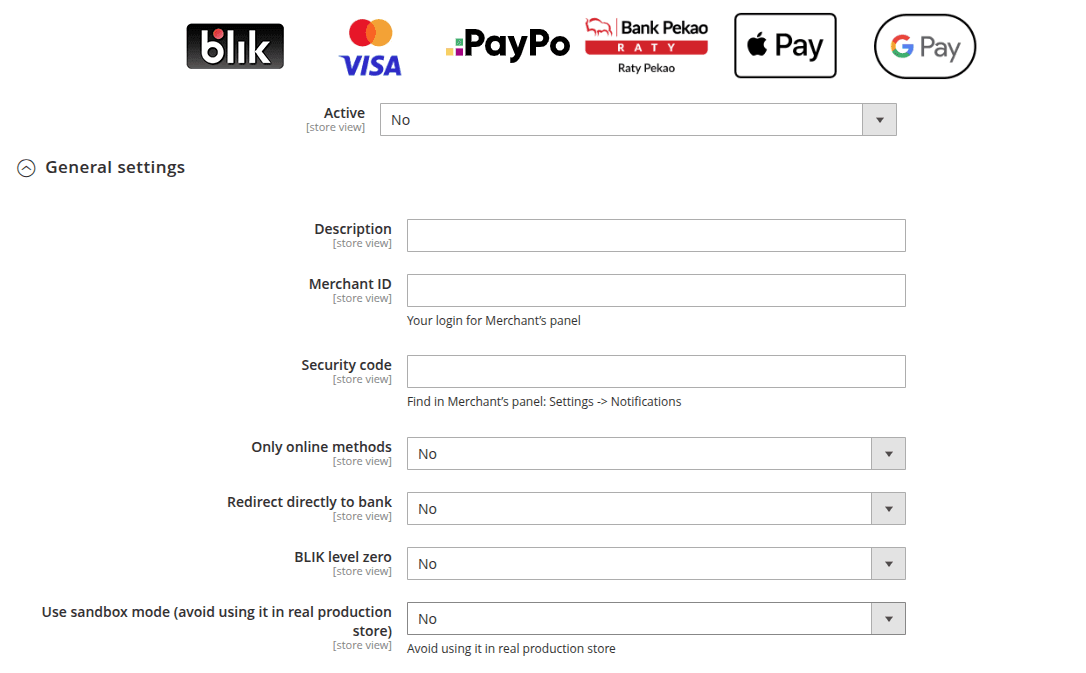
Description | Payment title that customers will see during the purchase. |
Merchant ID | Merchant identification number. In other words, the ID number for logging into the Tpay Merchant Panel. |
Security code | Security code, available in the Tpay Merchant Panel under the Settings tab → Notifications → sekcja Security. |
Only online payment methods | Function to show only payment methods that are processed in real-time. |
Direct bank redirection | Function to redirect the buyer directly to the bank, bypassing the Tpay Transaction Panel. |
BLIK level 0 | Function allowing the customer to enter the BLIK code on the store's page. |
Use Sandbox mode | Activates Sandbox mode. For Sandbox environment integration, use data from the Sandbox account. |
Standard payments (Open API - no currencies)
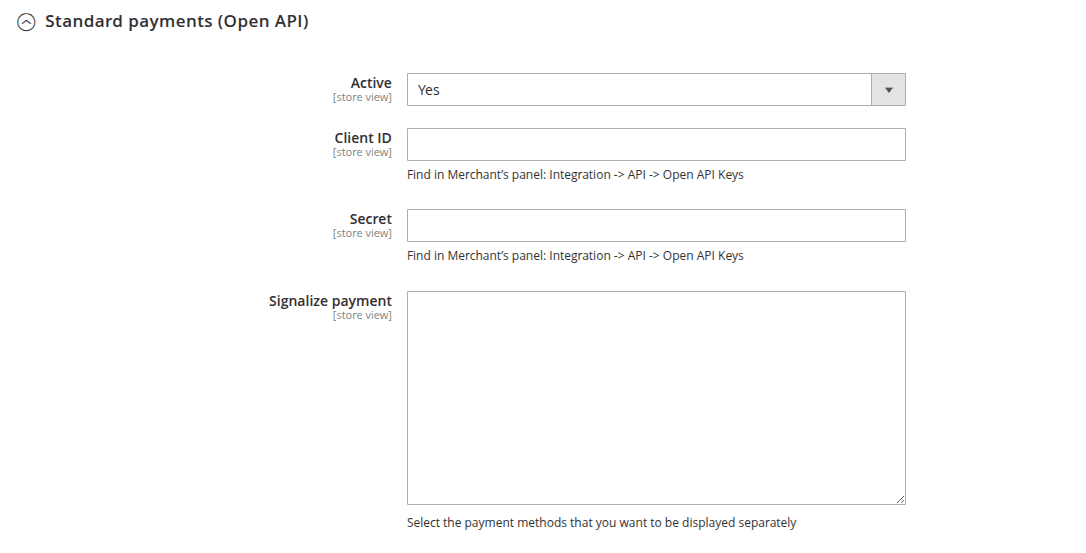
Configuration is based on Open API credentials, enables receiving payments via fast online transfers, exclusively in Polish zloty.
| Configuration field | Field description |
|---|---|
Active | Payment activation. |
Client ID | Available in the Tpay Merchant Panel under the Integration tab → API → Keys for new Open API section in the Client ID field. |
Secret | Available in the Tpay Merchant Panel under the Integration tab → API → Keys for new Open API section in the Client ID field. |
Highlight payment | Easy on-site mechanism that allows for highlighting any payment method. |
Origin API configuration (currencies)
Configuration intended for handling multi-currency card payments processed through a form on the store's page using the Origin API. It should be activated only if the point of sale will use this specific form of payment.
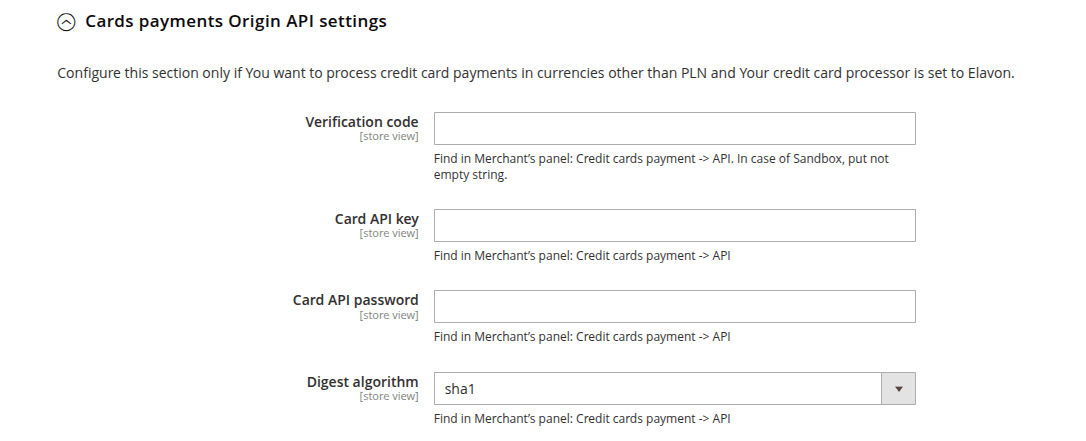
| Configuration field | Field description |
|---|---|
Active | Payment activation. |
API Key | API Key, available in the Tpay Merchant Panel under the Integration → API → Keys for old API section. |
API Password | API Password, available in the Tpay Merchant Panel under the Integration → API → Keys for old API section. |
On-site payment cards configuration
Configuration for card payments processed through a form on the store's page.
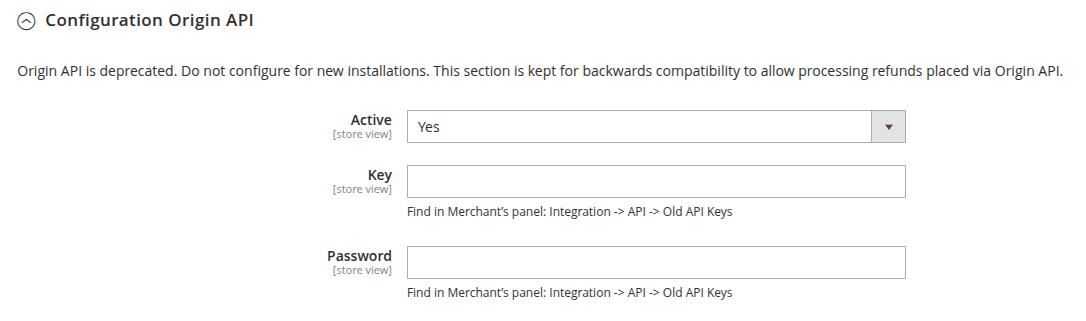
| Configuration field | Field description |
|---|---|
Active | Payment activation. |
Description | Payment title that customers will see during the purchase. |
RSA Key | RSA Key, available in the Tpay Merchant Panel under the Card Payments → API → Public RSA Key section for the Elavon acquirer (visible after enabling the securesale) method, whereas for the Pekao acquirer, the key is in the Integrations → API tab. |
Enable card saving | Function that allows customers to save their card details during purchases. For the next payment, the customer will not have to re-enter their card details (available only for logged-in users). |
Payment cards Origin API configuration (currencies):
Configuration for card payments processed through a form on the store's page.
| Configuration field | Field description |
|---|---|
Verification code | Available in the Tpay Merchant Panel under the Card Payments → API tab. |
API keys | Available in the Tpay Merchant Panel under the Card Payments → API tab. |
API password | Available in the Tpay Merchant Panel under the Card Payments → API tab. |
Signature algorithm | Available in the Tpay Merchant Panel under the Card Payments → API tab. |
Additional settings
Additional, optional module settings.
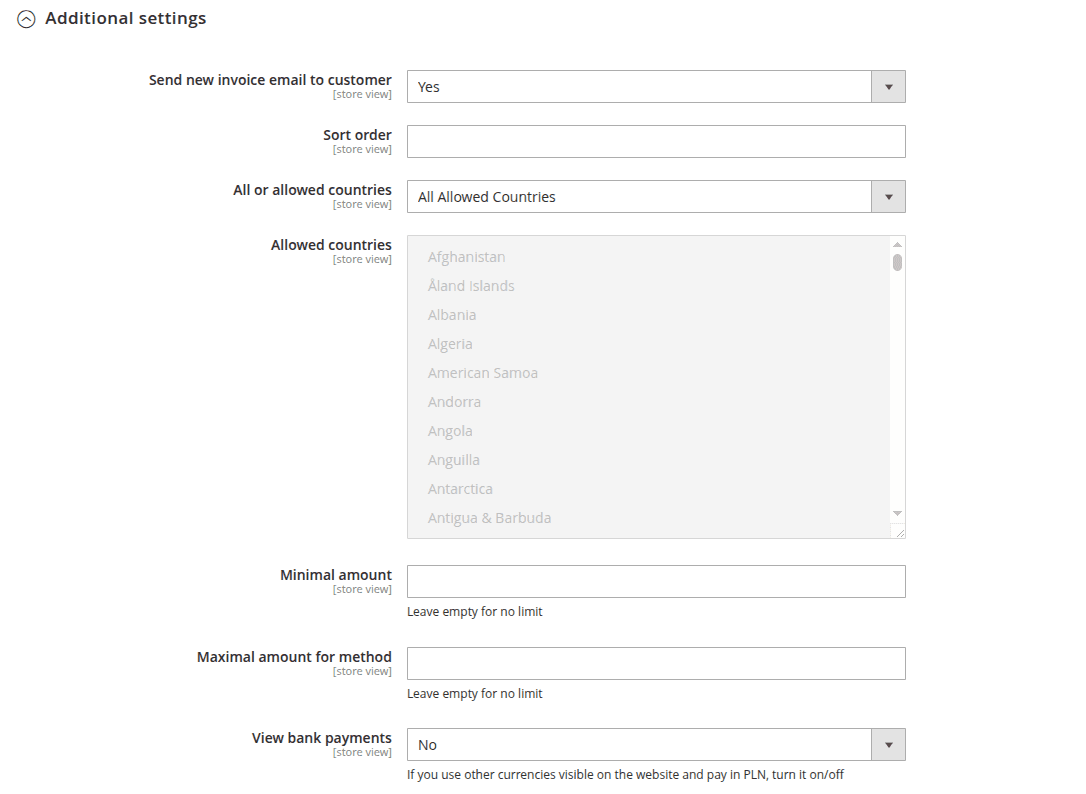
| Configuration field | Field description |
|---|---|
Send invoice message to customer's e-mail address | This function sends an email with the invoice to the customer. |
Payment position | The position of Tpay payments among other methods available in the store. |
All or allowed countries | This function allows you to restrict the display of Tpay payments for selected countries. |
Allowed countries | Countries for which the module should be active. |
Minimum amount | The minimum order amount for which Tpay payments will be available. Leave this field empty if you do not want to apply a minimum amount. |
Maximum amount | The maximum order amount for which Tpay payments will be available. Leave this field empty if you do not want to apply a maximum amount. |
Bank payment view | If the store has a currency other than PLN set, but you want the buyer to be able to pay by bank, activate this option. |
Order cancellation
Automatic cancellation of unpaid orders. Allows you to define the number of days after which an order without a registered payment will be canceled. After cancellation, the transaction cannot be paid.
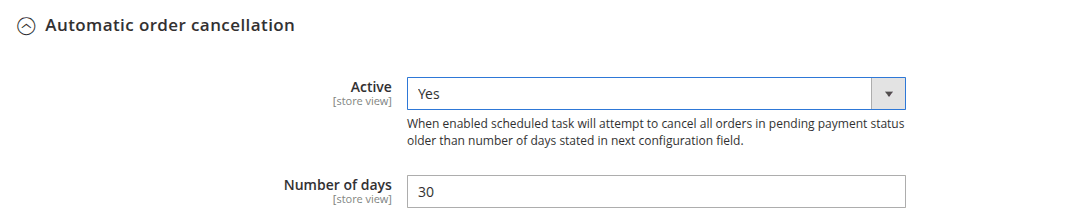
| Configuration field | Field description |
|---|---|
Active | Activation of the order cancellation feature. |
Number of days | The number of days after which the transaction is to be canceled. |
Instructions for processing refunds using the Tpay plugin for Magento 2
These instructions show how to correctly issue a refund to a customer directly from the sales platform using the Tpay module. Refunds processed in this way are treated as partial, which means that the status of the original transaction in the Tpay system does not change.
Instructions:
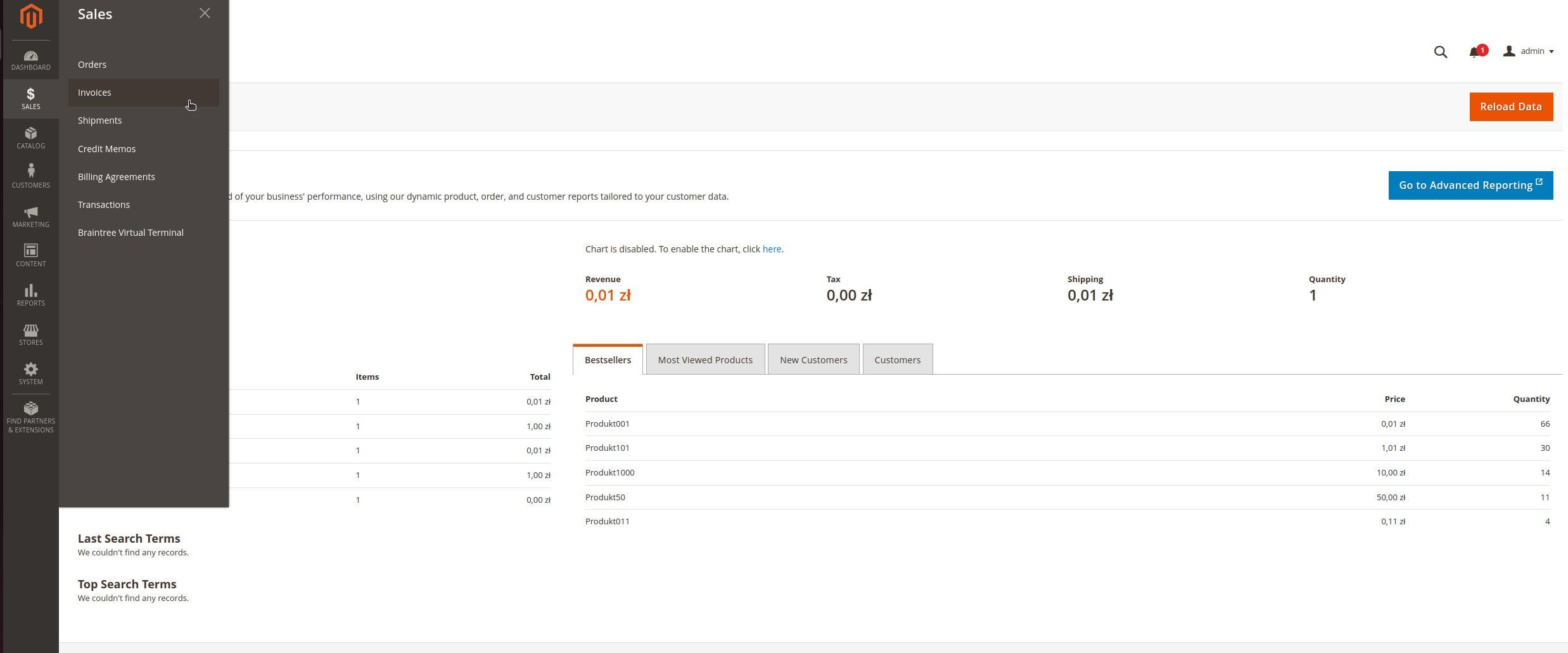
- Go to Sales → Invoices tab.
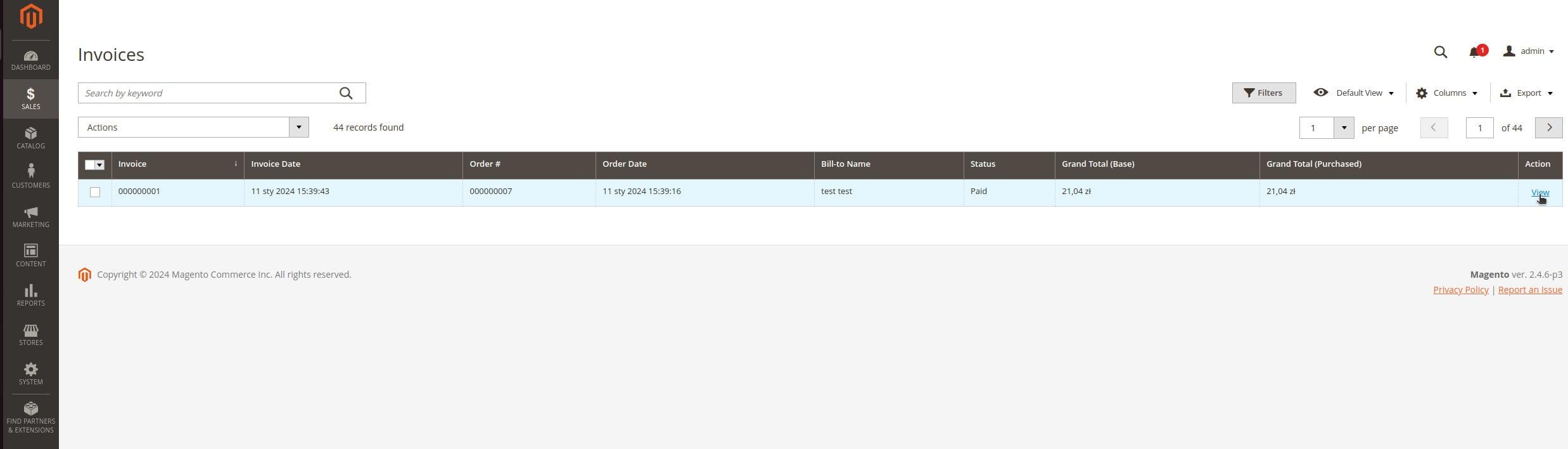
- Find the invoice for the order you want to refund and view its details.
- Select the Credit memo option.

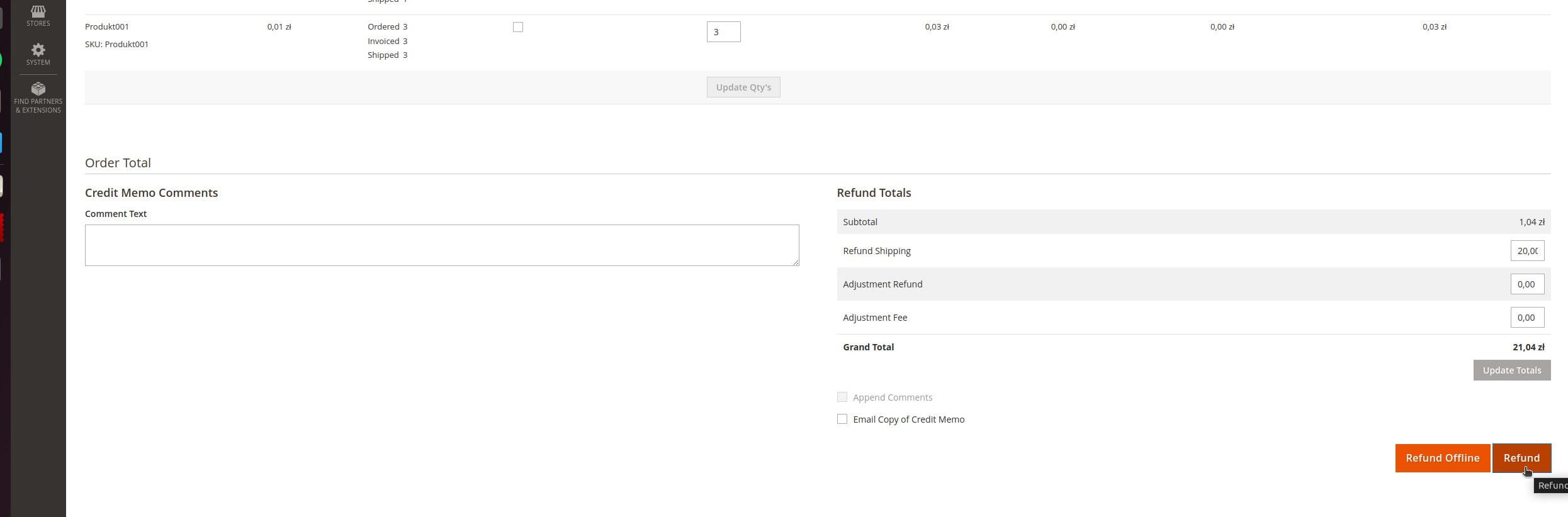
- Fill in the refund details and issue the refund by clicking Refund.